How it looks
The software's real screens — unretouched.
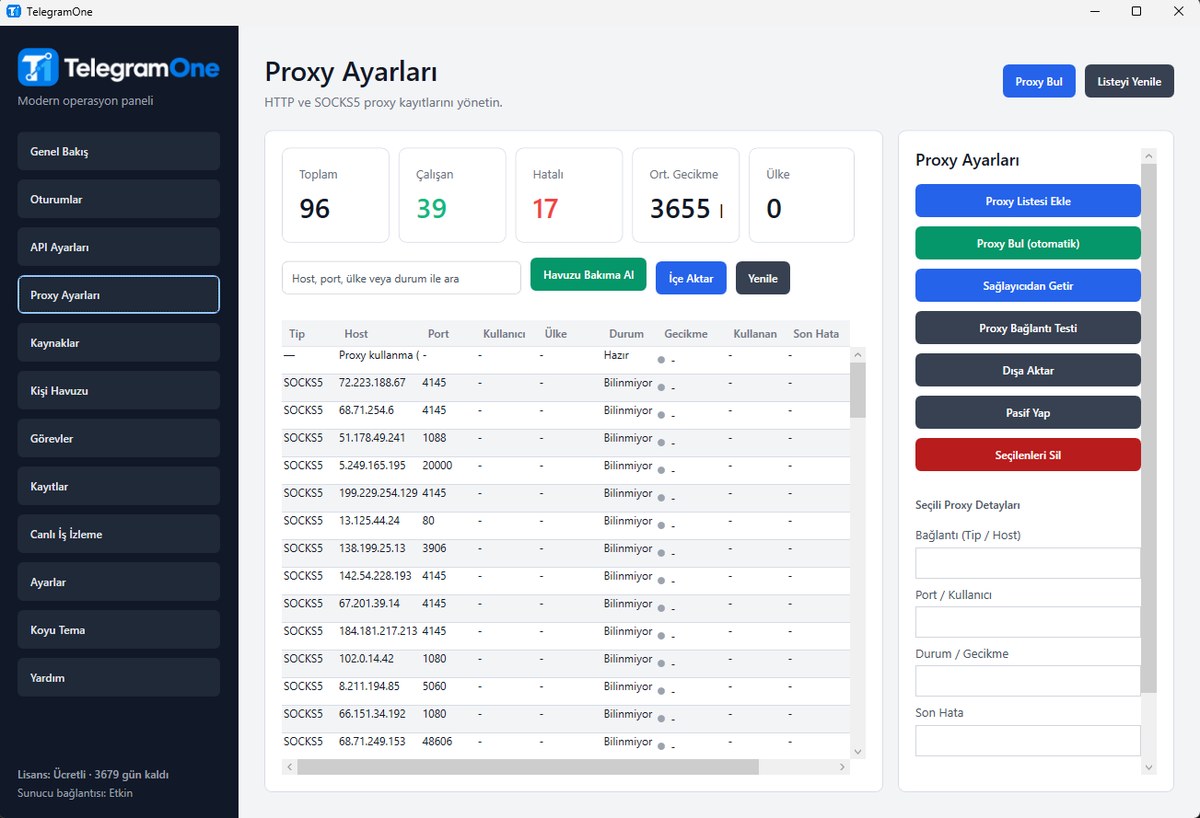
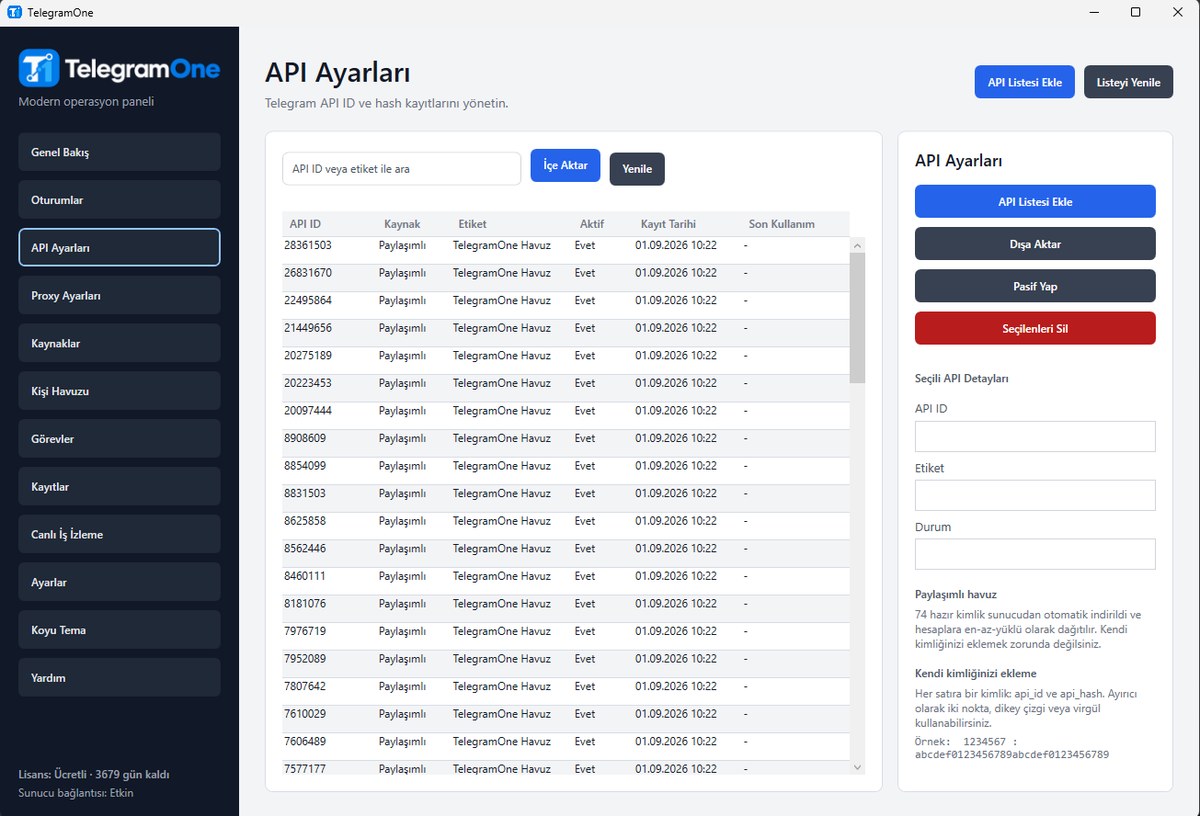
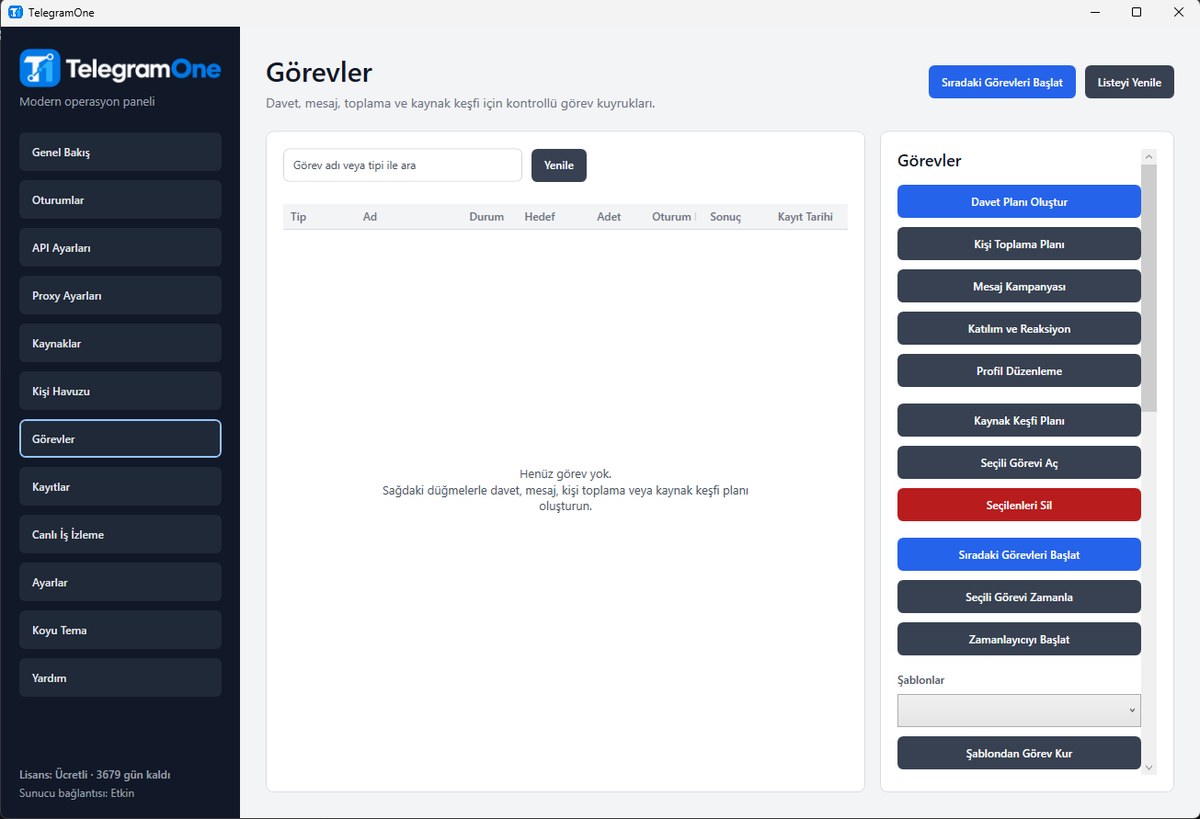
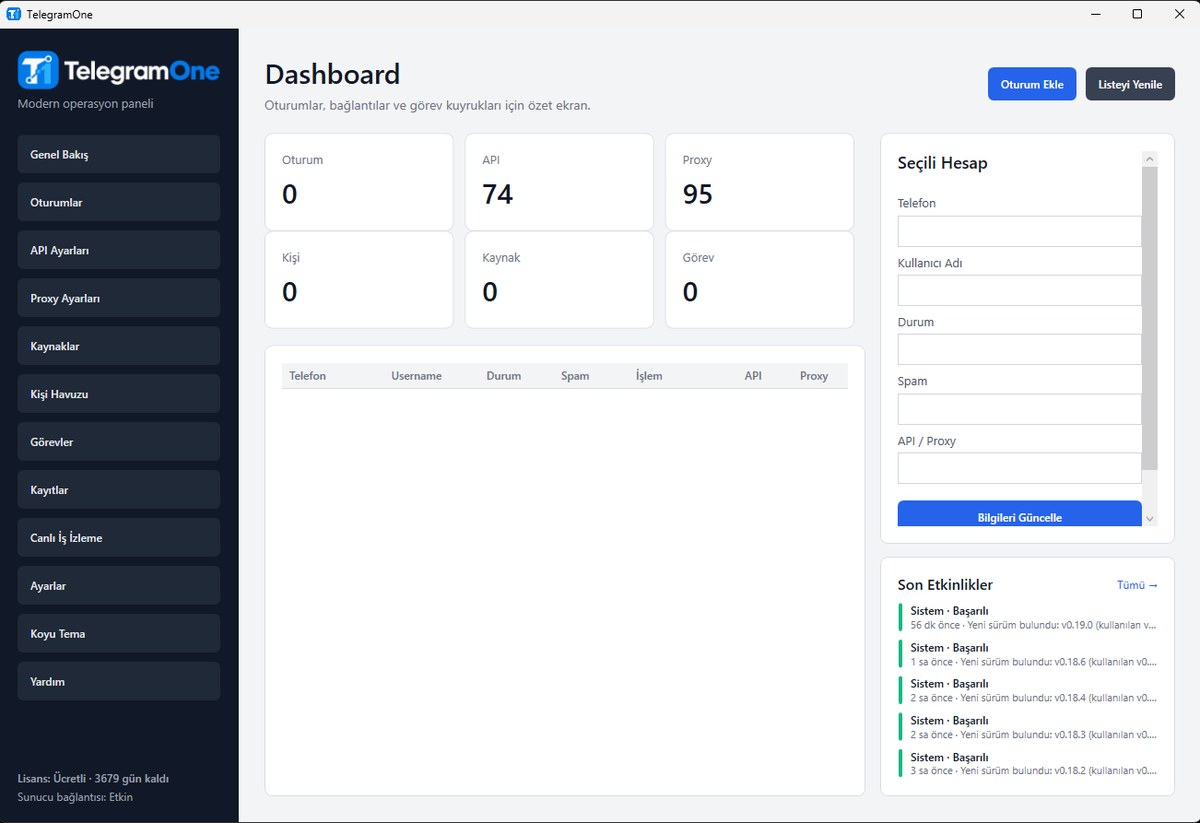
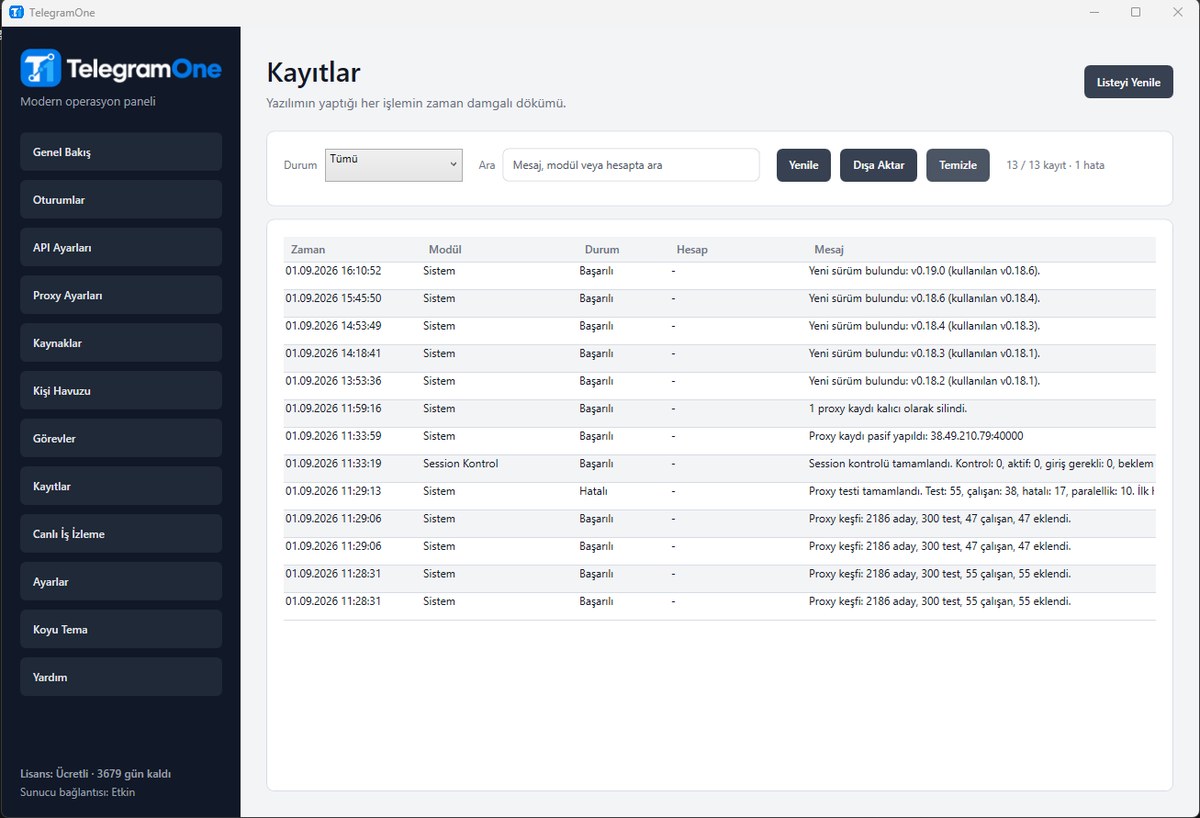
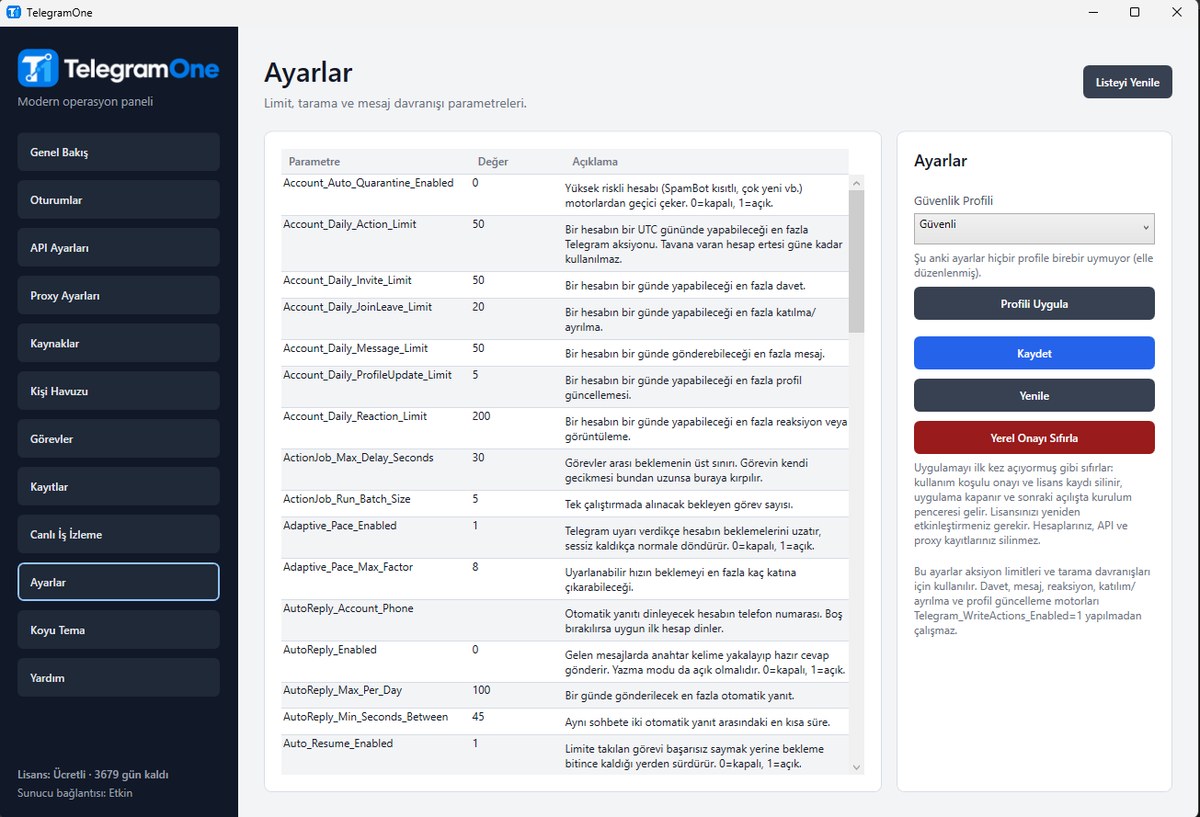
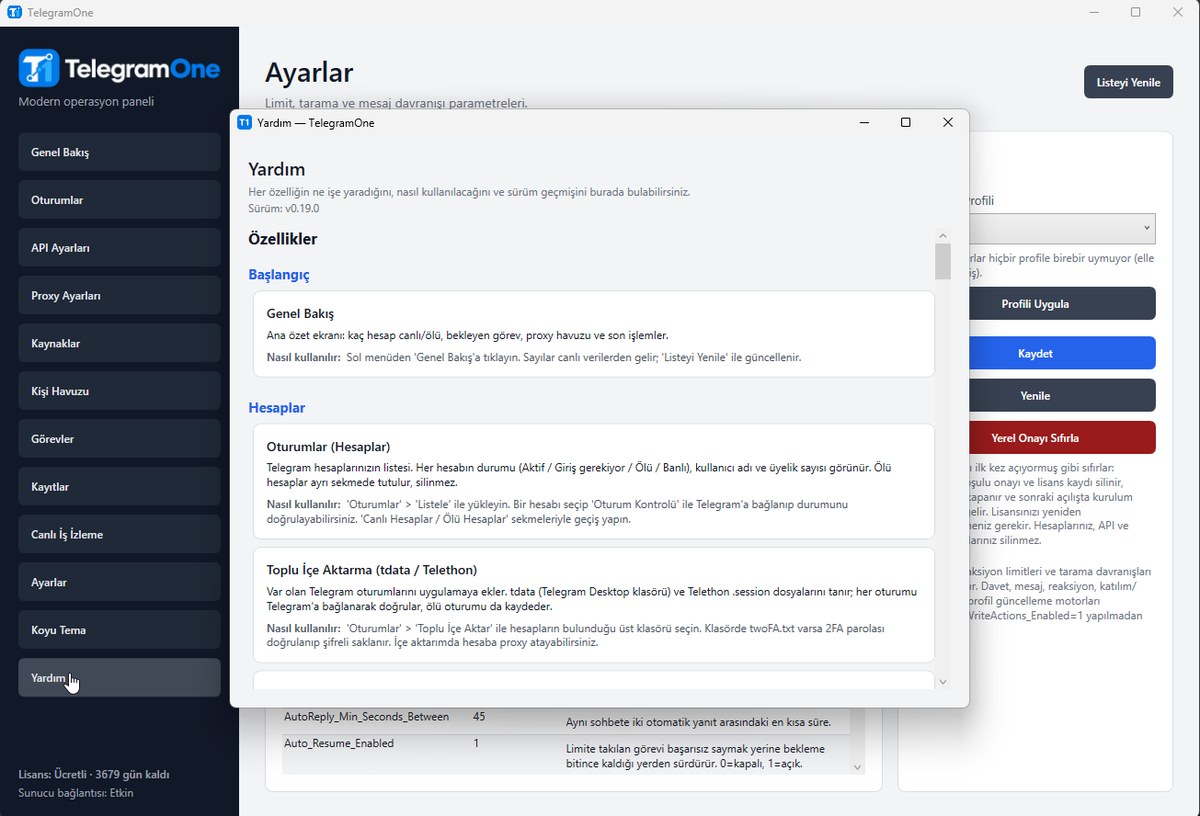
From account management to running campaigns, from collecting members to mirroring groups — every module lives in one application, and all of them are built to protect your accounts.
Move your sessions across safely and connect each account with its own identity.
Recognises tdata (the Telegram Desktop folder) and Telethon .session files.
Every session is verified by connecting to Telegram; the ones that fail are not deleted
but kept apart as "dead". If the folder has a twoFA.txt, the 2FA password
is verified and stored encrypted.
Shows each account's state (Active / Sign-in needed / Dead / Banned), its username and how many groups it belongs to. Spam status is queried through SpamBot.
You do not have to go to my.telegram.org and get your own api_id. The app
downloads the ready-made pool at startup and hands it out on a least-loaded
basis — no single credential carries the whole load. You can add your own credentials
too if you prefer.
Add proxies by hand, find them automatically, or pull them from a provider. Each one is tested against Telegram, assigned to accounts evenly, and shown with its country. On a flood the proxy is rotated automatically.
You define the work; the software manages the speed and safety limits.
Direct messages to people in your pool, or bulk posts to groups. Albums (multiple
media), template variables ({ad}, {soyad}) and alternatives
({hello|hi}) are supported. A typing indicator and human-like delays are
added.
Invites people from your pool into a target group. It tells apart and marks those whose privacy settings block it, who are already members, or whose channel limit is full. There is an option to leave out a group's owner and admins.
Collects members from groups and commenters from channels. It can filter out bots, deleted accounts, and people with no photo or no username, and can filter by writing script.
Target people who were online within the last hour, 6 hours, 24 hours, week or month. The "only those who posted" option collects the people who genuinely spoke in the group in that window — the strongest proof that an account is alive.
Adding accounts to groups and removing them, leaving reactions on posts, raising view counts and posting comments. Each account performs the action once and the gaps are randomised.
Bulk-updates names, bios, pictures and usernames; it can clear the old pictures too.
Carries every message posted in group/channel A over to group B the moment it arrives — either with the source hidden (as if it were B's own post) or with a "forwarded" label. Several A → B rules can run at once, and a target in slow mode is given time to rest.
Forwards a chosen post to several groups; the "forwarded from" line can be hidden.
Ban and remove members, lift bans, and grant or revoke admin rights in the groups where you are an admin.
Answers incoming messages with canned replies, by keyword. Separate rules for private chats, groups or both, with a daily cap and a cooldown per chat.
Brings new accounts up gradually: for the first days they only read, then the accounts chat among themselves at natural intervals. An account still warming up is excluded from campaigns automatically.
Finding groups and channels by keyword; username availability, invite-link extraction, number checking and a chat watcher.
An explainable risk score is produced for every account, and a high-risk account is pulled out of the engines automatically. One account can no longer drag the rest down with it.
FLOOD_WAIT, SLOWMODE and PEER_FLOOD responses are read correctly; the account rests exactly as long as it must and later actions are slowed down. The proxy is changed if needed.
Count per job, limit per account and delay, plus a daily action ceiling per account. You can work to firm bounds like "invite 3 people, collect 100 members".
Mark a job "run on the server" and it runs even while your computer is off. The same job never runs twice — the desktop leaves a job handed to the server alone.
Watch running jobs with live counters; see, period by period, how many invites and messages each account sent and how many members came from which group.
Session files, API secrets and 2FA passwords are stored encrypted. The contact pool leaves out blocked people and those already reached, automatically.
The software's real screens — unretouched.